 Board Online
 Flowcharts
 Kanban board
 Whiteboard
 Mind maps
 Graph paper
 Sticky notes
 Retro board
 Draw together
Online sticky notes
Text, link, picture, checklist and emoji notes on one board, in six colors and three shapes
What these sticky notes are good for
A wall of notes works when putting one up takes a second. Type it, pick a color, drag it to its spot, and move it again when your thinking changes.
Ideas you can regroup
Write one thought per note, then drag the notes into clusters and give each theme a color of its own. Rearranging them is the whole method.
To-dos in plain sight
A checklist note puts one ☐ item on each line. Swap ☐ for ☑ in its text when a task is done, and the list stays next to the rest of your plans.
Links and photos side by side
A link note shows its title, or the site’s domain, in blue and opens in a new tab. A picture note puts a photo from your device on a colored card with a caption. Handy for a mood board, research or a trip plan.
Reactions that stand out
Twelve emoji, from 👍 and 🔥 to ❓ and 💡, mark the favorite idea, the open question or the one to drop.
One color, one theme
Six colors and three shapes: wide, square and circle. Picture notes take the color too, so a color can mean the same thing all over the board.
Five ways to keep sticky notes
| These sticky notes | Padlet | Miro | Google Keep | Microsoft Sticky Notes | |
|---|---|---|---|---|---|
| Where your notes live | On a board in your browser | On a board, a map or a freeform canvas | On an infinite canvas | In a list synced across your phone, computer and watch | On your Windows desktop |
| Before the first note | Nothing | A sign-up for the free plan; none to post on someone else’s board | A sign-up with a work email | A Google Account | Nothing on Windows 10 and 11; a Microsoft account to sync |
| What you can put up | Text, a link, a picture, a checklist or an emoji | Text, images, audio, video, files, links and drawings | Sticky notes, plus spreadsheets, PDFs and images on the canvas | Notes, lists, photos, drawings and audio | Typed or handwritten text, or a picture |
| Sorting them | Colors, shapes, and dragging notes into groups | Grouping and sorting posts by their properties | By color, tag, author, keyword or sentiment, or automatic clusters | Labels, colors and pins | Note colors and a search over the list |
Padlet, Miro, Google Keep and Microsoft Sticky Notes, as their own product and help pages describe them in November 2026.
Putting up your first notes
- 1
Pick a kind
In the panel, choose Text, Link, Image, Checklist or Emoji. On a phone, tap Stickers at the top right of the board to open it.
- 2
Fill it in
Type the note, paste a link, choose a picture or write the list, then pick a color and a shape.
- 3
Put it on the board
On a wide screen, drag the preview to the exact spot. Or press Add to board, and the note lands in the middle of what you see.
- 4
Sort and keep
Move notes into groups as ideas settle. Your boards in the panel holds your recent walls, and Save to… writes a .boardonline file.
Answers about the sticky notes
Can I edit a note after it is on the board?
Yes. Double-click a text, link or checklist note to change its words. A picture note is drawn as one image, so for a new caption, add the picture again.
How do I tick off a checklist item?
Double-click the note and replace ☐ with ☑ on that line. The boxes are text, so they show in exported images as well.
What pictures can I add?
PNG, JPEG, GIF, WebP or SVG files from your device, under 20 MB each. They stay in this browser and are never sent to our server.
Where does a link note open?
Always in a new tab, so the board stays just as you left it.
Can I change a note’s color later?
Yes. Select the note and pick another background in the panel on the left. Select several notes to recolor them in one go.
Can I add notes on a phone?
Yes. Tap Stickers, write the note and press Add to board: the panel closes so you see the note at once. Dragging from the panel works on wider screens.
Can other people add notes with me?
Not on this board. The retro board and the collaborative whiteboard work in a shared room, live, through a link you send to the others.
Put your first note up
Everything you need is in the panel next to the board above.
When your notes grow into something more
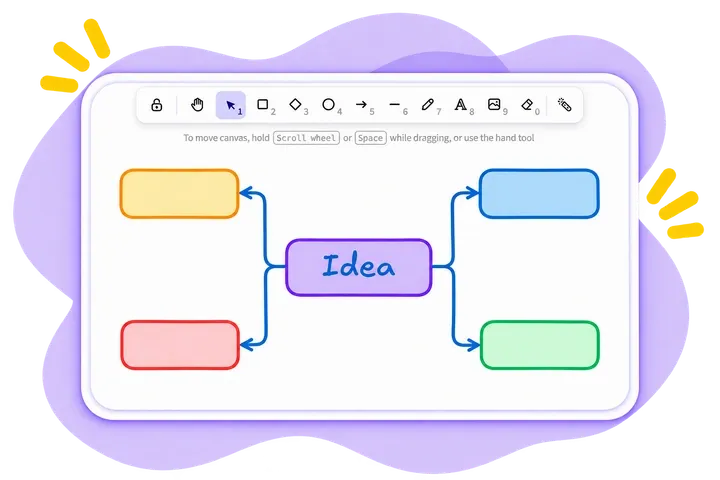

Mind maps and concept maps
Put the main idea in the middle and add branches around it, or link concepts with arrows.
Open the board
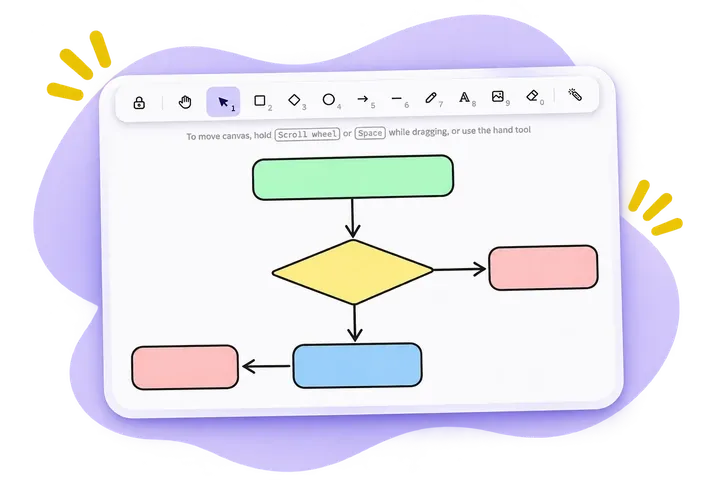

Diagrams and flowcharts
Start from a flowchart, an org chart, a timeline or a Venn diagram and change it to fit your process.
Open the board
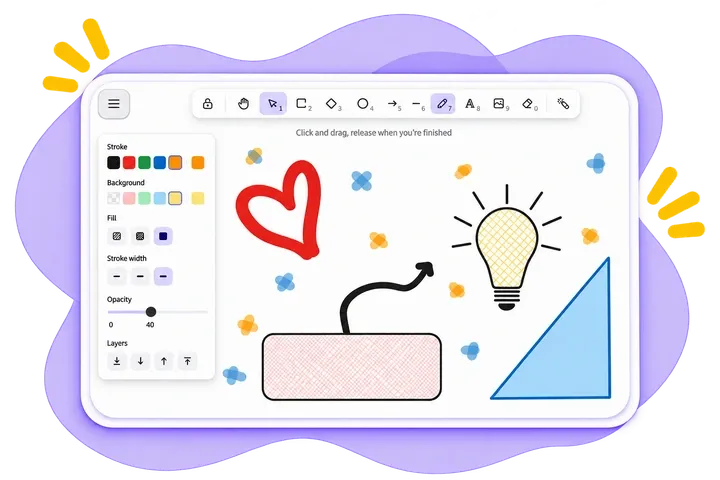

Online whiteboard
An empty canvas with a pen, shapes, arrows and text, for anything that doesn’t fit a template.
Open the board


