 Board Online
 Flowcharts
 Kanban board
 Whiteboard
 Mind maps
 Graph paper
 Sticky notes
 Retro board
 Draw together
Brainstorming template
Mind maps and concept maps to brainstorm, study and plan, with branches you add in one click
Why brainstorm on this board
An idea grows faster when each new branch takes one click. Pick a map, put your topic in the middle, and keep adding until the page fills with options.
Branches in one click
Select a shape and a round + appears on each side. Click one, pick a rectangle, diamond or ellipse, and type: the new node arrives already joined by an arrow.
Study notes that make sense
The Study notes map sets out a topic, its key ideas, examples and open questions, and the concept maps link ideas with the words that relate them.
Plans you can see
Project plan splits a goal into tasks, a timeline and people, so the whole project fits on one screen before it goes into a task list.
Decisions side by side
Pros and cons weighs one choice, and the double bubble map puts two options next to each other with what they share in the middle.
Free to rearrange
Every node is a shape you can drag, recolor or resize, and the lines follow it. Nothing is locked into a strict tree.
Mind map tools compared
| This brainstorming board | Miro | Coggle | MindMeister | XMind | |
|---|---|---|---|---|---|
| Account before the first idea | None | A sign-up with a work email | Sign-in first | Google or email sign-up | A sign-up for online maps |
| Limit on the free plan | None: everything is free | 3 editable boards | 3 private diagrams, unlimited public ones | 3 mind maps | Up to 10 online maps |
| Building a map with others | Not on this board | Yes, in real time | Yes, in real time, on the free plan | Yes, with unlimited collaborators | Yes; real time on its Premium plan |
| Ready-made maps to start from | 10 mind and concept maps | 7,000+ templates | Templates and examples | Included | Included |
Coggle, MindMeister, XMind and Miro, as their own pricing and product pages put it in November 2026.
Building your first map
- 1
Choose a map
In Templates, pick a mind map or a concept map. On an empty board it lands in the middle, sized to fit the screen.
- 2
Name the center
Double-click the middle node and write your topic. Then go round the branches and replace the sample words.
- 3
Grow it with +
Select any node, click the + on the side where the next idea belongs, and type. Keep going until you run out of ideas.
- 4
Tidy and save
Drag nodes into groups and color the ones that matter, then export a PNG for your notes or save a .boardonline file.
Ten maps to start from
Mind maps spread one idea outward; concept maps show how separate ideas connect. Pick the kind that matches your question.
Mind maps
- Brainstorm
- One idea in the middle and six branches, for collecting options fast.
- Project plan
- Goals, tasks, timeline and people around one project.
- Study notes
- A topic with its key ideas, examples and questions, for revising.
- Pros and cons
- What speaks for a decision and what speaks against it.
- Bubble map
- One subject in the middle and the words that describe it, handy before writing about it.
- Double bubble map
- Two options with what they share in the middle and what sets each apart outside.
Concept maps
- Concept map
- Ideas joined by labeled arrows that say how they relate.
- Water cycle
- A worked school example: how water moves between ocean, air and land.
- How a website works
- From typing an address to seeing the page, step by step.
- Product ecosystem
- Who and what a product connects to: users, partners and services.
Mind map branches are plain lines, while concept map links and the nodes you add with + are arrows. Any of them can be restyled afterwards.
Brainstorming board FAQ
What is the difference between a mind map and a concept map?
A mind map starts from one central idea and branches out from it. A concept map has several ideas of equal weight, linked by arrows labeled with how they relate.
How do I add a branch?
Select a node and click the round + on the side you want, choose a shape and start typing; the new node is joined by an arrow. From the keyboard, Ctrl or Cmd and an arrow key does the same.
Can I change the color or look of a node?
Yes. Select it and change the fill, the stroke and the edges in the panel on the left. Select several nodes to restyle them together.
Can a map grow to the left or upward?
Yes. The + buttons sit on all four sides of a selected node, so a branch can go in any direction, and the canvas has no edges.
How do I put my map into notes or a slide?
Use Export image in the menu for a PNG or SVG. Select part of the map first to export just that part.
Can I brainstorm with my class or team live?
Not on this board. The collaborative whiteboard gives everyone a room link, and you can paste a map there to work on it together.
Will my map still be here tomorrow?
Yes, in this browser. Your boards in the panel keeps your recent maps, and a .boardonline file is the safe copy of anything important.
Start mapping your idea
The templates and the board are at the top of this page.
Where to take your ideas next
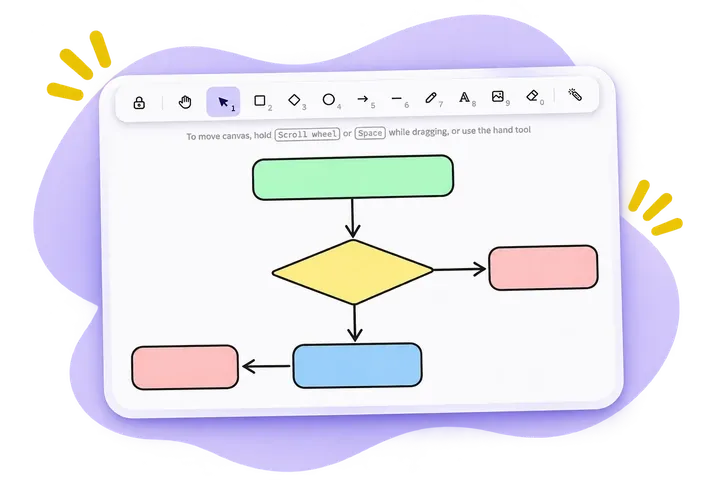

Diagrams and flowcharts
Start from a flowchart, an org chart, a timeline or a Venn diagram and change it to fit your process.
Open the board
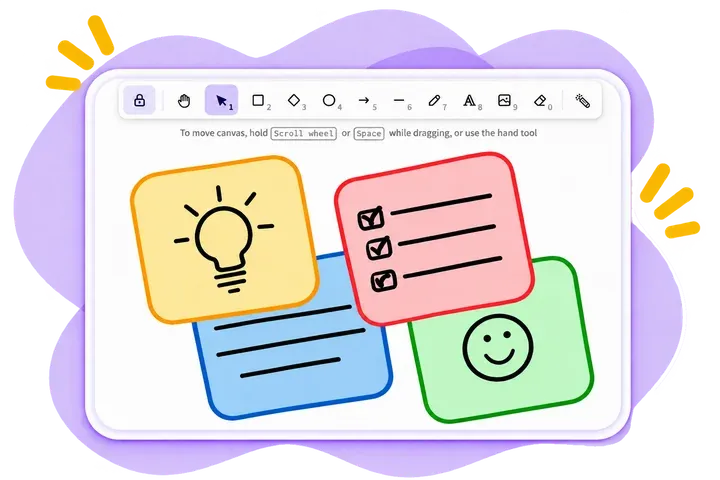

Sticky notes
Colored notes with text, a link, a picture, a checklist or an emoji, placed anywhere on the board.
Open the board
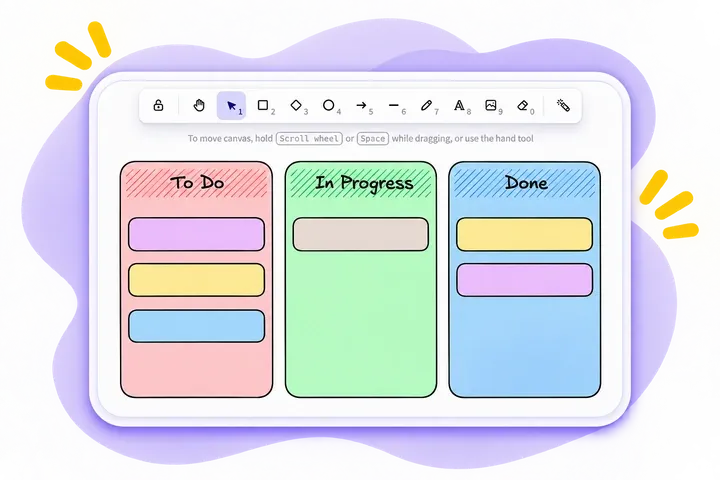

Kanban board
To Do, Doing and Done columns with sticky notes that you move along as the work goes.
Open the board


